How to Fix Home Wifi Dead Spots Throughout Your Home

That one chair where video calls freeze, the back bedroom where phones switch to cellular data, or the camera that drops offline at night are not small annoyances. They are signs that your network is not reaching the parts of your property that matter. To fix home wifi dead spots properly, start by identifying why coverage is weak before buying another piece of equipment.
A stronger plan is usually more effective than a stronger-looking router. Every Burlington and GTA home is different: brick walls, finished basements, older construction, additions, detached garages and busy neighbourhood Wi-Fi can all affect wireless performance. The right solution depends on the layout, the internet connection and what you need the network to support.
Why Wi-Fi dead spots happen
Wi-Fi is a radio signal, and radio signals lose strength as they travel. Distance is one factor, but building materials often cause the bigger problem. Brick, concrete, plaster with metal lath, radiant floor heating, mirrors and utility rooms can weaken or block a signal. A router tucked into a basement office or enclosed in a cabinet starts with a disadvantage.
The newer 5 GHz and 6 GHz Wi-Fi bands can deliver excellent speed, but they generally do not travel through walls as well as the older 2.4 GHz band. That is why a device may appear connected in a far room but still buffer, disconnect or respond slowly. It has a weak connection, not necessarily a slow internet plan.
Network demand also matters. A household using streaming TVs, laptops, gaming systems, smart locks, doorbells and security cameras asks much more of Wi-Fi than a home with one computer. Small businesses face a similar issue when staff, guests, payment terminals, printers, cameras and VoIP phones share one poorly planned network.
Test the problem before changing equipment
Walk through the property with a phone or laptop and note where performance drops. Test at different times of day, since congestion from nearby networks can vary. Pay attention to whether the problem affects every device or only one. A single older phone, laptop or smart device may have limited Wi-Fi capability, while an entire weak area points to a coverage issue.
Also test close to the router using a wired computer if possible. If the wired connection is slow too, the issue may be with the internet service, modem, router configuration or provider connection rather than a dead spot. This simple check prevents spending money on equipment that will not solve the real problem.
Fix home Wi-Fi dead spots by improving router placement
Before adding mesh units or access points, look at the router's location. It should be out in the open, elevated where practical and as central as possible to the area it needs to serve. Avoid placing it on the floor, behind a television, inside a structured wiring panel or beside large metal appliances.
For a two-storey home, a centrally located main-floor position often provides better overall coverage than a basement corner. That said, a home office, internet entry point or existing wiring may limit where the router can go. Moving it is worthwhile only if it can be done safely and without creating untidy exposed cabling.
Router antennas should generally be positioned according to the manufacturer's guidance. If the router has external antennas, changing their orientation can help coverage across multiple floors. A quick adjustment may improve a marginal room, but it will not overcome thick masonry or a long distance to a detached building.
Restarting the modem and router can clear a temporary issue, and firmware updates can correct stability or security problems. These are sensible maintenance steps, but they are not permanent cures for a poorly designed coverage area.
Choose the right equipment for the property
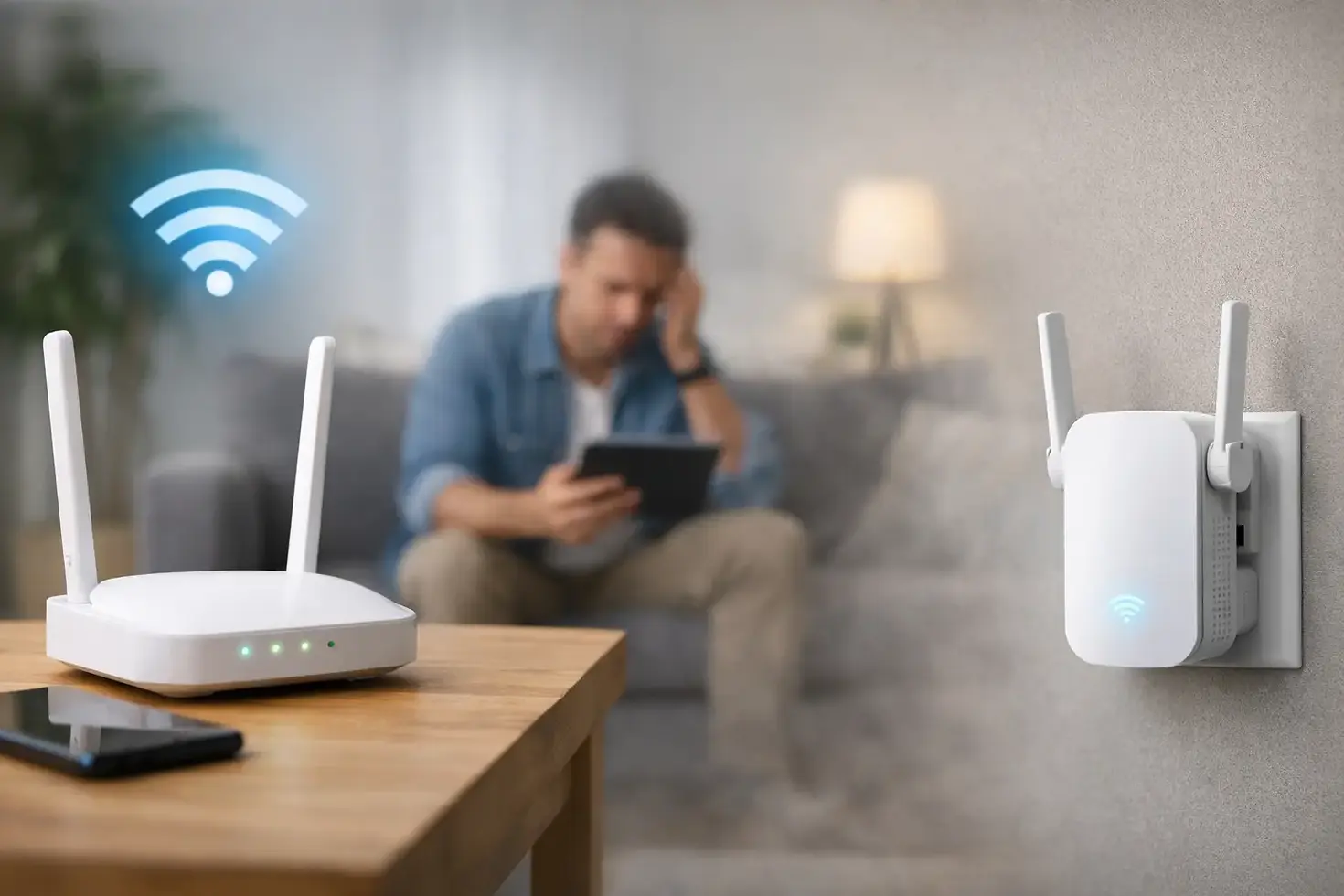
A basic Wi-Fi extender can be useful in a small, lightly used dead zone. It receives the existing signal and repeats it farther into the home. The trade-off is that it needs a decent signal where it is installed. Put it inside the dead spot and it has little useful signal to repeat. It can also reduce available wireless capacity because it is communicating with both the router and your devices.
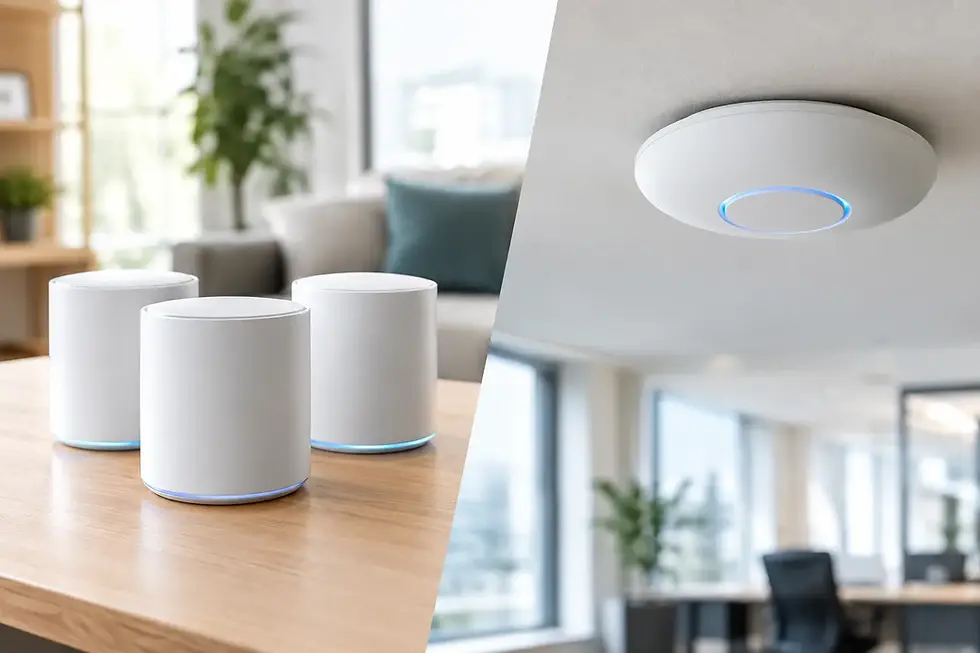
Mesh Wi-Fi is often a better choice for larger homes or layouts with several weak areas. Mesh units work together under one network name, allowing devices to move more smoothly from one area to another. Placement is still critical. Each unit needs a reliable connection to the next unit, so spacing nodes too far apart simply creates a chain of weak links.
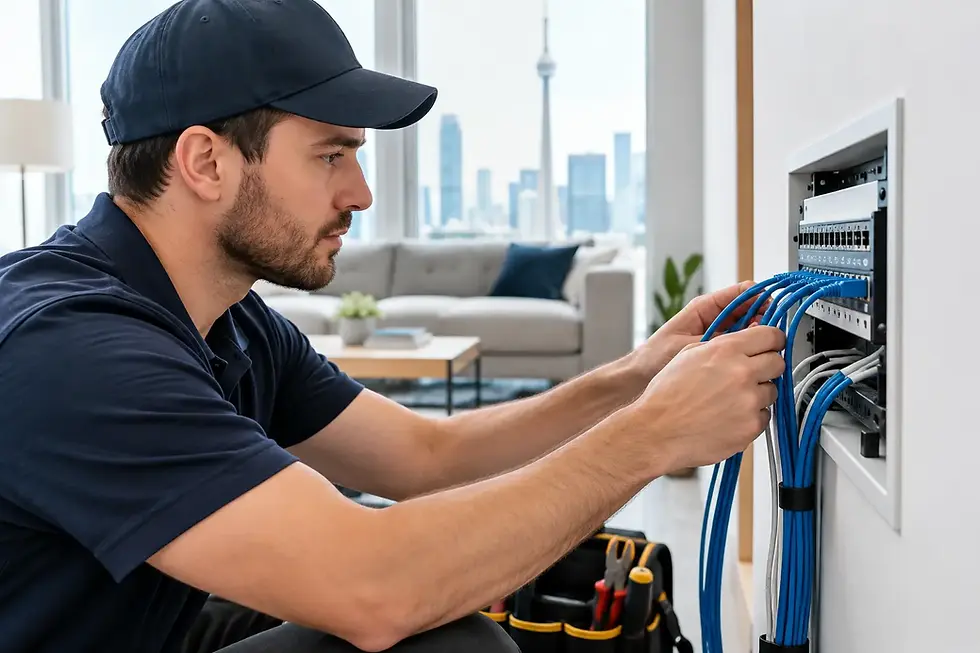
For the most consistent result, use wired access points. An access point is connected back to the router or network switch with Ethernet cable, then creates strong Wi-Fi in its local area. This approach is especially effective for finished basements, upper floors, home offices, garages and areas where multiple cameras or smart-home devices operate.
A professionally installed wired access point may cost more up front than a plug-in extender, particularly if cable needs to be routed through finished walls or ceilings. In return, it avoids depending on an already weakened wireless signal. For many properties, that reliability is worth the investment.
Give cameras and smart devices a dependable connection
Security cameras, doorbells and smart-home devices make Wi-Fi problems more noticeable because they need to remain connected when you are away. A camera that works only when someone is near the router is not providing dependable monitoring. Outdoor walls, stucco, brick and distance to the driveway or backyard can all affect its connection.
Where possible, wired security cameras using network cable are the most reliable option. They can receive data and power through the same cable, avoid local Wi-Fi interference and continue recording consistently when the network is designed correctly. Wireless cameras can still be practical where cable installation is not suitable, but they need a proper signal test at the actual mounting location.
Keep smart devices on a well-managed network. Many older smart products use 2.4 GHz Wi-Fi only, while newer phones and laptops may prefer 5 GHz or 6 GHz. A good configuration supports both without leaving the network unnecessarily open or confusing to use. Separating guest devices from business equipment, cameras or core smart-home controls also improves security and troubleshooting.
Problems that can look like dead spots
Not every Wi-Fi complaint is a coverage problem. An overloaded router can slow down even with full signal bars. An outdated internet gateway supplied by a provider may struggle with a busy home or small office. Incorrect channel settings, interference, damaged cabling and duplicate network equipment can also create intermittent service.
For example, adding a second router without configuring it correctly can cause devices to cling to the wrong connection. A mesh system installed alongside an older router may create competing networks. In a small business, a guest network sharing the same poorly configured equipment as payment terminals and VoIP phones can affect daily operations.
These issues are why replacing equipment one item at a time is often frustrating. The goal is not simply to make a signal appear farther away. The goal is to create a stable, secure network that supports the way the property is used.
When a site assessment makes sense
Professional help is useful when coverage problems involve more than one floor, thick construction materials, outdoor areas, security cameras, a detached workspace or business-critical devices. It is also a sensible choice when you want clean cable routing, properly placed equipment and one person accountable for the full system.
TechWise designs Wi-Fi and network solutions around the property rather than forcing every home or small business into the same package. That can mean relocating equipment, installing wired access points, setting up mesh Wi-Fi correctly, improving network security or integrating reliable connectivity for cameras, alarms and smart-home devices.
A good network should fade into the background. If you can take a call from the basement, check a camera from the backyard and run your business devices without wondering which room has signal, the system is doing its job.