Why Does WiFi Disconnect Often? Common Causes

A video call freezes halfway through a meeting. A security camera suddenly shows as offline. Your smart lock takes too long to respond, or the internet drops every evening when everyone gets home. If you are asking, “why does WiFi disconnect often?”, the answer is usually not one mysterious fault. It is often a combination of signal coverage, network congestion, equipment condition, and the way devices are installed around your property.
For homeowners and small businesses in Burlington and across the GTA, intermittent Wi-Fi is more than an annoyance. It can affect remote camera viewing, point-of-sale systems, VoIP phones, smart-home devices, staff productivity, and the confidence that your technology will work when you need it.
Why Does WiFi Disconnect Often at Home or Work?
Wi-Fi is a radio signal, not a cable. Walls, floors, appliances, nearby networks, distance, and too many connected devices can all affect it. A device may still show a Wi-Fi icon while receiving a weak or unreliable signal, which is why the problem can feel inconsistent.
The first step is separating a Wi-Fi issue from an internet service issue. If every wired and wireless device loses access at the same time, the modem, internet provider, or main router may be the source. If a laptop works near the router but a camera, phone, or tablet disconnects in another area, coverage is the more likely concern.
The router is in the wrong location
A router placed in a basement utility room, inside a cabinet, behind a television, or at one far end of the building has a difficult job. Concrete, brick, metal ductwork, radiant flooring, mirrors, and dense insulation can weaken wireless signals considerably.
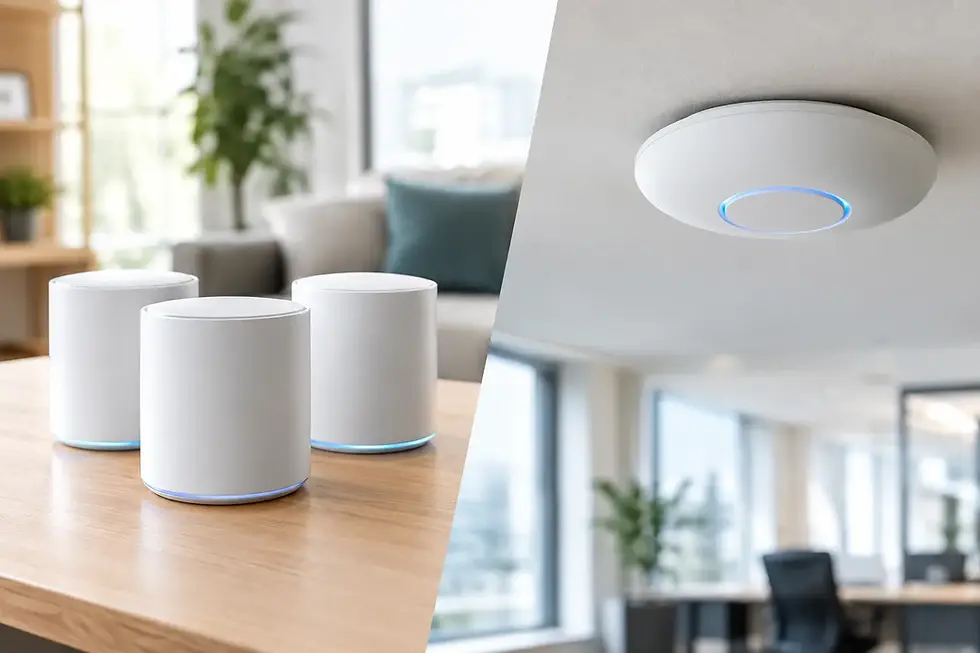
This is common in larger homes, renovated properties, and commercial spaces with storage rooms, offices, or exterior areas that need coverage. Moving the router may improve performance, but it is not always practical when the internet connection enters the property in a poor location. In those cases, properly positioned wired access points or a designed mesh system can provide better results than simply buying a stronger router.
Your network is competing with nearby Wi-Fi
In denser neighbourhoods, condo buildings, plazas, and offices, many routers operate close together. When several networks use the same wireless channel, devices can slow down, disconnect, or repeatedly switch connections.
The 2.4 GHz band reaches farther but is more prone to congestion and interference. The 5 GHz band is generally faster and less crowded, but its range through walls is shorter. Newer equipment may also use 6 GHz, which can be helpful for compatible devices, although it does not eliminate the need for good access point placement.
Automatic channel selection works well in some homes, but not every setup. A proper network assessment can identify crowded channels and choose settings that suit the actual environment.
Too many devices are sharing an older router
A household may have phones, laptops, tablets, televisions, game consoles, cameras, doorbells, thermostats, speakers, and appliances online at once. A small business may add computers, printers, payment terminals, cameras, phones, and guest Wi-Fi to the same network.
An older all-in-one modem-router may technically support these devices, but that does not mean it can manage them reliably under load. Video streaming, cloud backups, security camera uploads, and large file transfers all compete for capacity. The result can be dropped connections, delayed video, or devices that appear offline until they reconnect.
Upgrading equipment can help, but it should follow an assessment of the internet plan, building layout, and device needs. A more expensive router will not fix a dead zone created by concrete walls, and extra access points will not solve an unstable provider connection.
Common Causes of Wi-Fi Dropouts
Some problems are predictable once you know where to look. Others require testing because the visible symptom is the same: a device loses its connection.
Interference from everyday equipment
Microwave ovens, cordless devices, Bluetooth accessories, baby monitors, garage-door equipment, and some smart-home hubs can affect the 2.4 GHz wireless band. The issue may only appear when a particular appliance is in use, which makes it easy to miss.
For example, a camera near a kitchen, garage, or mechanical room may work most of the day but drop out at certain times. Relocating the device, changing the Wi-Fi band, or adding a closer access point may solve the issue.
Outdated firmware or failing hardware
Routers and access points need firmware updates to address stability, compatibility, and security issues. At the same time, frequent reboots, overheating, power interruptions, or aging hardware can create random disconnects.
Do not overlook the power supply. A loose power adapter or overloaded power bar can cause a router to restart briefly, taking the whole network offline. If the router feels unusually hot or loses settings after a restart, replacement may be the sensible choice.
Smart devices are not always strong Wi-Fi clients
Many cameras, plugs, locks, and sensors use compact, low-power wireless radios. They are designed for modest data use, not for overcoming long distances or heavy interference. A phone may stay connected in an area where a camera repeatedly drops offline because the phone has a better antenna and can switch bands more effectively.
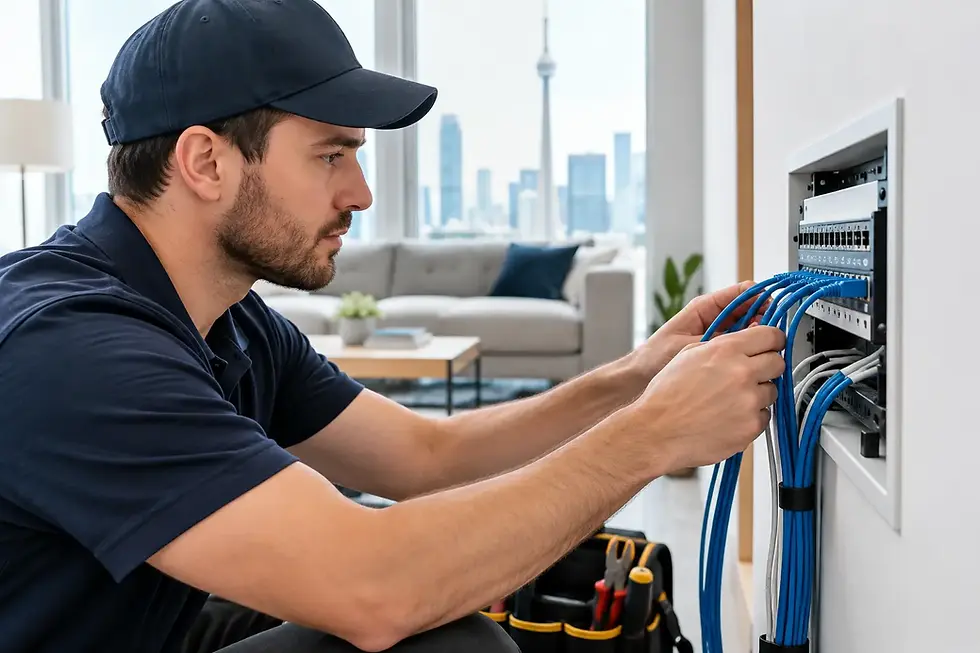
This matters especially for outdoor cameras, doorbells, detached garages, and devices installed near brick or metal surfaces. For critical security equipment, a wired connection is often the most dependable option. Wired camera systems reduce reliance on Wi-Fi for the video path and can provide stable power and data through a single properly installed cable.
Network settings are causing devices to switch or disconnect
Band steering, mesh roaming, guest network isolation, security settings, and IP address conflicts can all affect device behaviour. These settings are useful when configured correctly, but a generic setup does not always suit every property.
Some older smart-home devices only work on 2.4 GHz. Others struggle when a router combines 2.4 GHz and 5 GHz under one network name. Separating bands temporarily can help with setup and diagnosis, but it is not automatically the best long-term answer. The right choice depends on the devices and how people use the network.
How to Narrow Down the Problem
Before replacing equipment, look for a pattern. Does the connection fail only in one room? At a certain time of day? Only on one device? Does a wired computer remain online while Wi-Fi devices disconnect? These details point toward a practical solution.
Start with the basics: restart the modem and router once, check that cables and power connections are secure, and confirm whether the internet provider reports an outage. Then test the affected device close to the router. If it stays connected nearby but not in its usual location, signal strength or interference is likely involved.
If the issue affects a business, avoid troubleshooting only after hours or when no one is using the network. The network may seem fine when camera traffic, phones, printers, staff laptops, and guest devices are not active. Testing under normal conditions gives a clearer picture.
For recurring problems, make a short record of the date, time, affected devices, and what was happening on the network. This is more useful than repeatedly rebooting equipment because it helps identify whether the fault is related to coverage, workload, a device, or the internet service itself.
When a Wi-Fi Upgrade Is Worth It
A professional upgrade is worth considering when dropouts are frequent, when coverage is poor in key areas, or when your network now supports more devices than it did a few years ago. It is also sensible before installing additional cameras, smart locks, or business equipment that will rely on the network every day.
The best solution may be a new router, but it may also be wired access points positioned around the property, a mesh system with wired backhaul, separate business and guest networks, or a hardwired connection for critical equipment. For a small business, network security and proper segmentation are just as important as speed.
TechWise designs and troubleshoots networks around the building and the equipment that needs to run on them. That means considering where cameras, workstations, phones, smart-home devices, and outdoor equipment are located rather than treating Wi-Fi as a single box plugged into the wall.
A dependable connection starts with identifying the real cause, not guessing at a quick fix. If your Wi-Fi drops often, a careful on-site assessment can turn an unpredictable network into one you do not have to think about every day.